





































Deploying KubeDB Platform in Offline Mode
This guide describes how to deploy the KubeDB Platform in an offline (air-gapped) environment. An offline deployment is only supported with the Self Hosted Production deployment type — no other deployment type can be installed offline.
In offline mode, AppsCode never receives any of your KubeDB usage data. AppsCode is only involved once, to issue the license against your Cluster ID in the very first step. Everything else — including all billing-related functionality — runs entirely inside your own cluster through the acaas chart, which is deployed only in offline mode.
Prerequisites
See Prerequisites in the Common Configuration guide for the minimum cluster requirements and the optional k3s setup note.
1. Visit the KubeDB Platform Self-Hosted Page
Navigate to KubeDB Platform Self-Hosted. Here you will find your previously generated self-hosted installers.
Click on the Create New Installer button to get started.
2. Choose the Self Hosted Production Deployment Type
Offline mode is only available with the Self Hosted Production deployment type. Choose Deployment Type -> Self Hosted Production and give it a name in the installer name section.
3. Enable Offline Installer and Set the Cluster ID
This is the requirement that distinguishes an offline deployment from a standard production deployment.
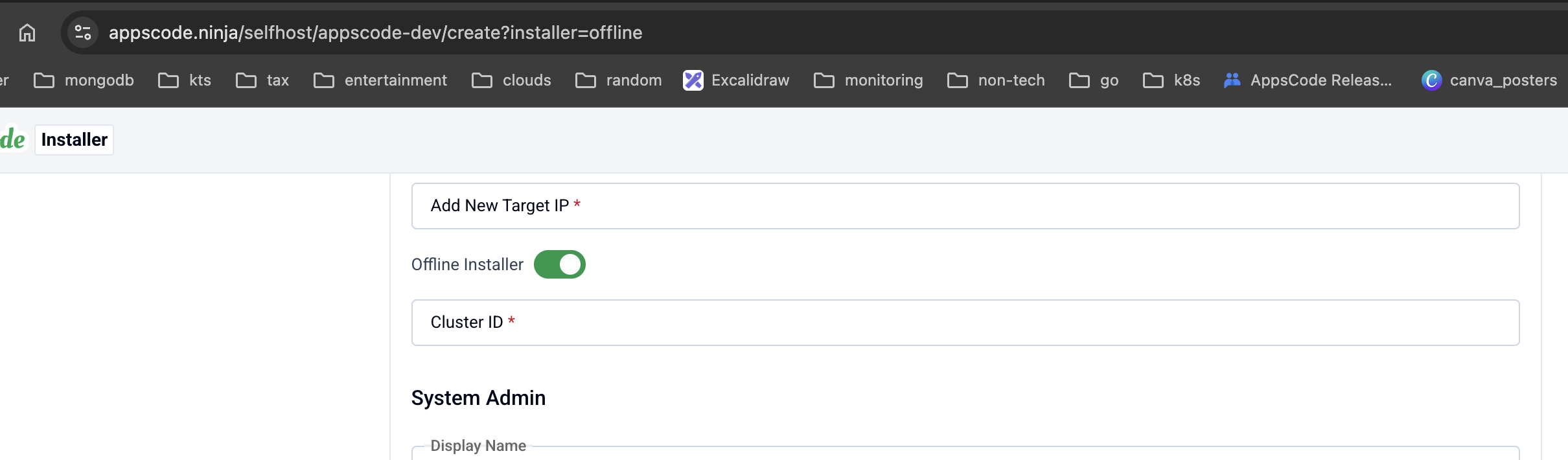
- Toggle on the Offline Installer? option.
- Set the Cluster ID field. This ID is what AppsCode uses to issue the license for your offline cluster. This is the only piece of information AppsCode receives — it is used solely for license issuance.
[!NOTE] Because the platform runs fully air-gapped, AppsCode has no visibility into your KubeDB usage data after the license is issued. All billing and usage accounting happens locally via the acaas chart.
4. Complete the Remaining Configuration
Aside from enabling the offline toggle and providing the Cluster ID, all other sections are identical to a standard Self Hosted Production deployment (Global Administrative Settings, Release, Registry, Settings, Monitoring, Infra, TLS, Ingress & Gateway, NATS, and more). For the complete field-by-field walkthrough, follow the Self Hosted Production guide.
5. Generate Installer and Documentation
Click the “Deploy” button to submit your information. AppsCode will generate the installer and provide the necessary documentation.
6. Deploy KubeDB Platform
Follow the documentation provided by AppsCode to deploy the KubeDB Platform. The generated instructions for an offline deployment include an extra step to install the acaas chart, which carries the billing-related frontend and backend deployments. This chart is deployed only in offline mode.
curl -fsSLO https://appscode.ninja/links/installer/<id>/offline/<token>/archive.tar.gz
tar -xzvf archive.tar.gz

# Install FluxCD
# Install ACE
# It may take up to 10 mins to get everything into a running state

# Install acaas
helm upgrade -i acaas \
  oci://ghcr.io/appscode-charts/acaas \
  --version v2026.6.19 \
  --namespace ace --create-namespace \
  --values=./acaas-values.yaml \
  --wait --debug --burst-limit=10000
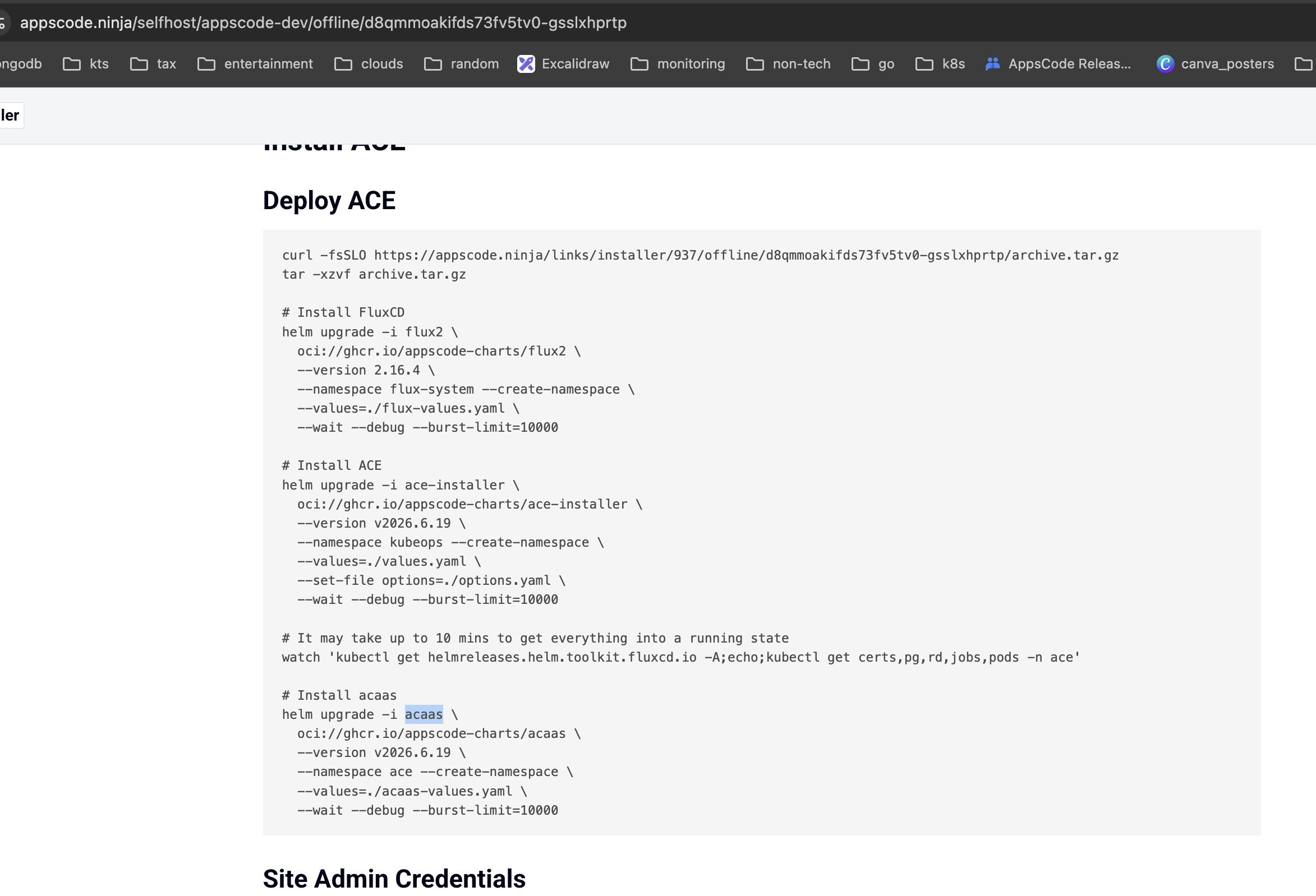
[!IMPORTANT] The acaas chart contains the billing-related frontend and backend deployments. It is what keeps all usage and billing data inside your cluster, so it is installed in offline mode only — no other deployment type installs this chart.
7. Explore the Deployed Platform
Once deployed, access the KubeDB Platform using the configured IP or domain. Log in with the admin account credentials provided during the creation process.
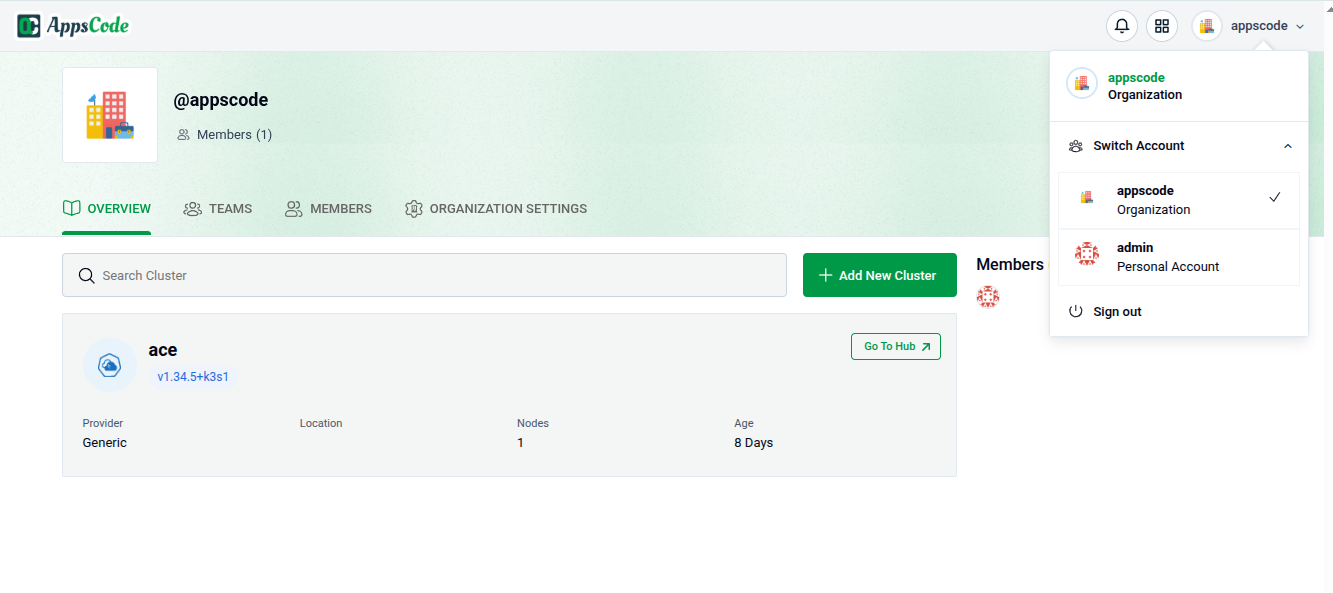
8. Importing Additional DBaaS Clusters
When importing other DBaaS clusters into an offline platform, the platform cannot reach AppsCode to obtain a license automatically. The platform admin must acquire the license for each new cluster manually and supply it during import:
- Obtain the license for the new cluster from the AppsCode portal yourself.
- Provide that license in the license field while importing the cluster.
[!NOTE] This manual step applies only to offline mode. In online deployments the license is fetched automatically during import.
Get Support
If you encounter any challenges during the deployment or have questions, reach out to AppsCode support for assistance.